Every desktop browser lets you save your bookmarks to a single HTML file in about a minute. Pick your browser below to export a copy you can keep as a backup or move to another browser.
Before you export
- Use a computer. Most phone browsers can’t export bookmarks to a file, so turn on sync and export from a computer instead. (Safari on a recent iPhone can export. See the Safari section.)
- Let sync finish first so the file includes bookmarks you saved on other devices.
- Export each browser profile on its own if you use more than one.
Export bookmarks from Chrome
- Open the bookmark manager by pressing Ctrl+Shift+O on Windows and Linux, or Cmd+Option+B on a Mac. You can also open the menu (the three dots), then Bookmarks and lists, then Bookmark manager.
- Click the three-dot menu at the top of the bookmark manager page.
- Choose Export bookmarks and save the file.
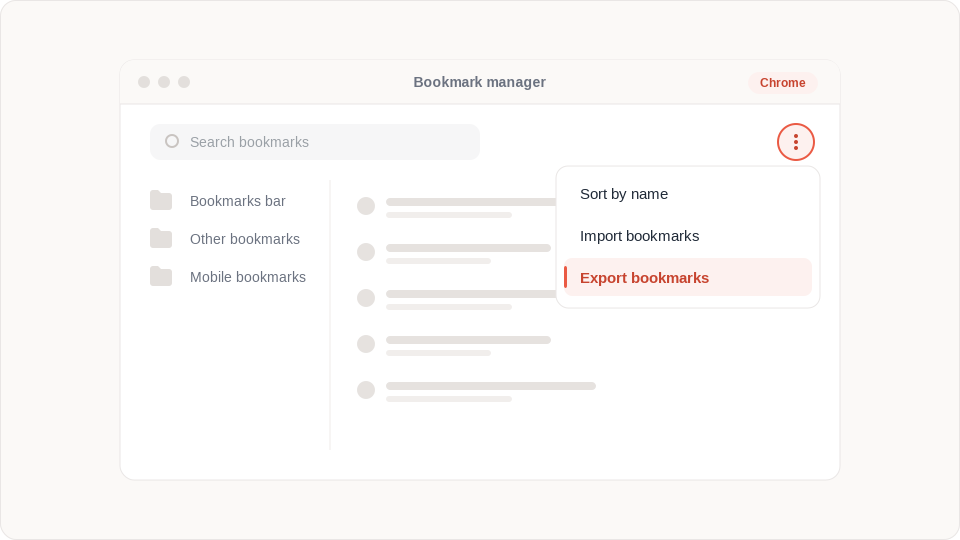
Chrome saves an HTML file that you can import into another browser.
Export bookmarks from Firefox
- Open the Library window by pressing Ctrl+Shift+O on Windows and Linux, or Cmd+Shift+O on a Mac. You can also open the menu, then Bookmarks, then Manage bookmarks.
- Click Import and Backup.
- Choose Export Bookmarks to HTML and save the file.
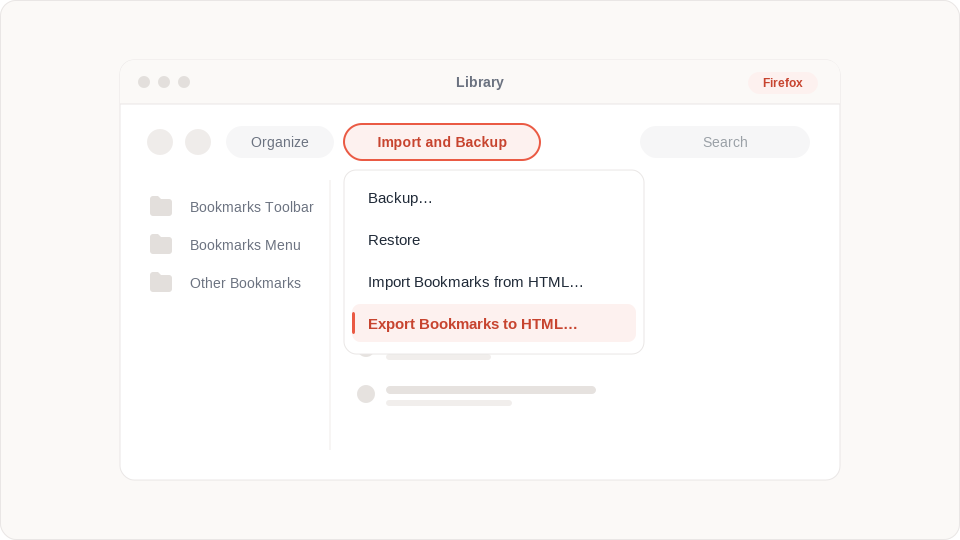
Don’t pick Backup by mistake. Backup creates a JSON file that only Firefox can restore, while HTML works in other browsers.
Export bookmarks from Edge
Edge calls bookmarks “favorites”.
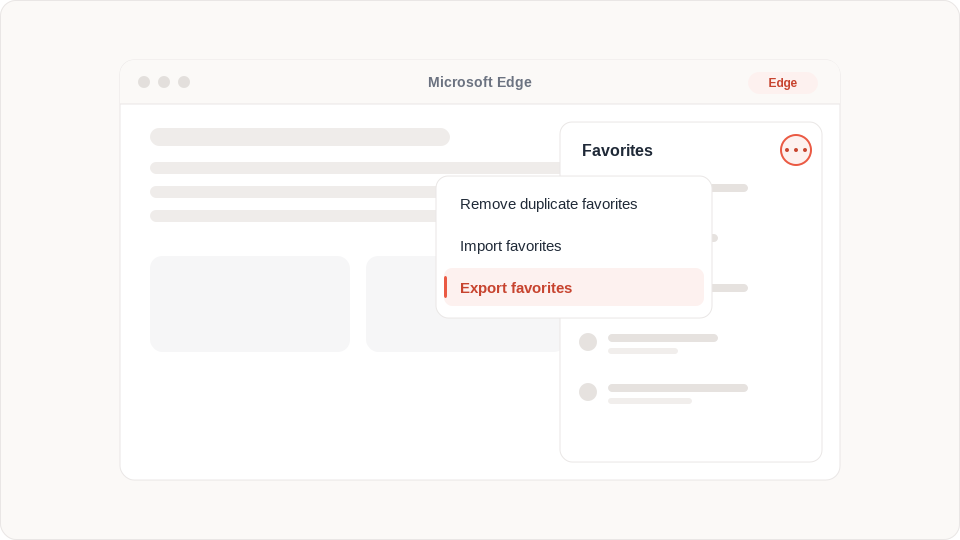
- Press Ctrl+Shift+O to open Favorites, or use the menu (the three dots) and choose Favorites.
- Click the three dots (More options) in the Favorites panel.
- Choose Export favorites and save the file.
Export bookmarks from Safari
On a Mac:
- In the menu bar, choose File, then Export Browsing Data to File.
- Select Bookmarks and leave the other items unticked unless you really want them.
- Click Download (or Export on newer versions of macOS), pick a name and a place to save it, and click Save.
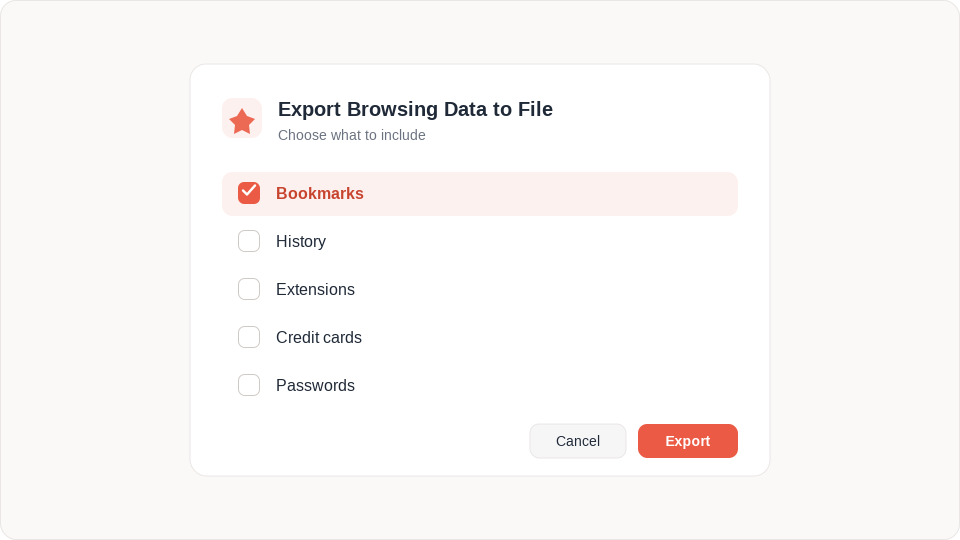
Safari saves a .zip file with your bookmarks in an HTML file inside. Apple says the export is not encrypted, so leave Passwords unticked unless you need them and delete the zip once you’ve imported it.
On an older Mac, choose File, then Export, then Bookmarks to save the HTML file directly.
On a recent iPhone or iPad, open Settings, tap Apps, then Safari, and tap Export under History and Website Data. Select Bookmarks, then tap Save to Downloads.
Check your exported file
Open the HTML file in any browser to see a clickable list of your links in their folders. If it is empty or ends in .json, export it again.
- Put the date in the file name, like bookmarks-2026-11-26.html.
- Keep a copy somewhere other than your computer, such as a cloud drive.
- Don’t share the file, because a list of the sites you’ve saved says a lot about you.
What to do with the file
- Back up. Keep the file safe. Browser sync copies deletions to every device, so keep an exported file as your backup.
- Move to another browser. Look for Import near where you found Export. In Chrome it’s Bookmarks and lists, then Import bookmarks and settings. In Edge it’s Settings, then Profiles, then Import browser data, then “Favorites or bookmarks HTML file”. In Firefox it’s Import and Backup, then Import Bookmarks from HTML. In Safari it’s in the File menu.
- Clean up first. Don’t carry a mess to a new browser. Our 30-minute bookmark clean-up starts with the file you just made.
Fix common export problems
- No Export option. You are probably in the main browser menu. In Chrome and Edge, open the bookmark manager page first and use the menu inside it.
- The file is .json. You picked Firefox’s Backup. Go back and choose Export Bookmarks to HTML.
- Some bookmarks are missing. Sync may not have finished, or those links live in another profile.
We’re building Clipstead, a small app for saving links and finding them again. Here’s what it is.